Player Profiles
Player profiles let you save names as reusable entries. Once saved, you can seat the same people game after game without retyping. All profiles and stats stay on your device — no account needed.
How profiles are created
Profiles are created automatically when you start a game. Every name you enter for the four seats becomes a saved profile on your device. If that name already exists, the existing profile picks up the new game's stats.
Picking from saved profiles
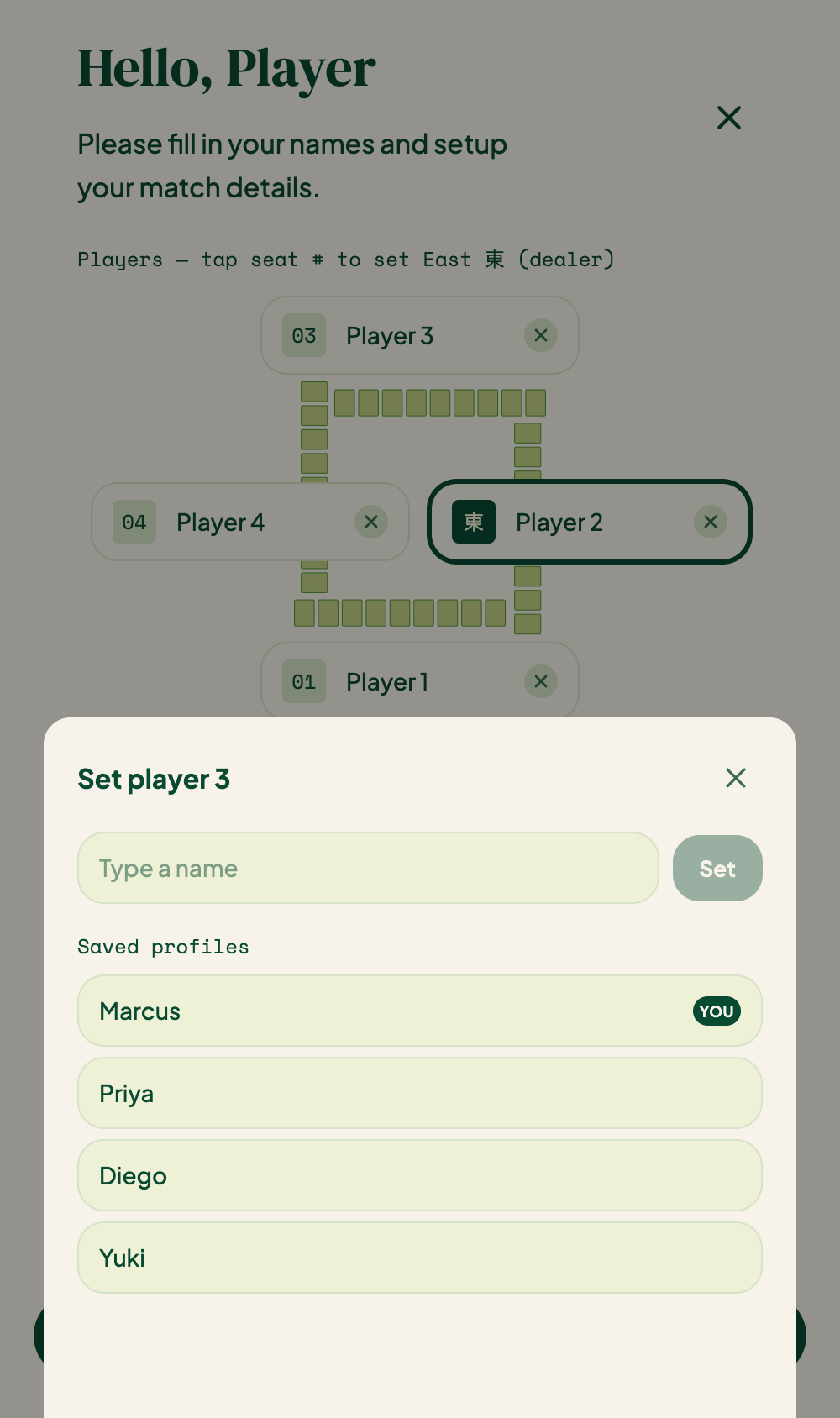
Tap any seat field on the Settings screen. A sheet slides up with two options:
- Type a name directly and tap Set to use it.
- Choose from the Saved profiles list below — tap any name to fill that seat immediately.
If a player is already in another seat, their row is dimmed and marked Seated to prevent duplicates.
Profiles page
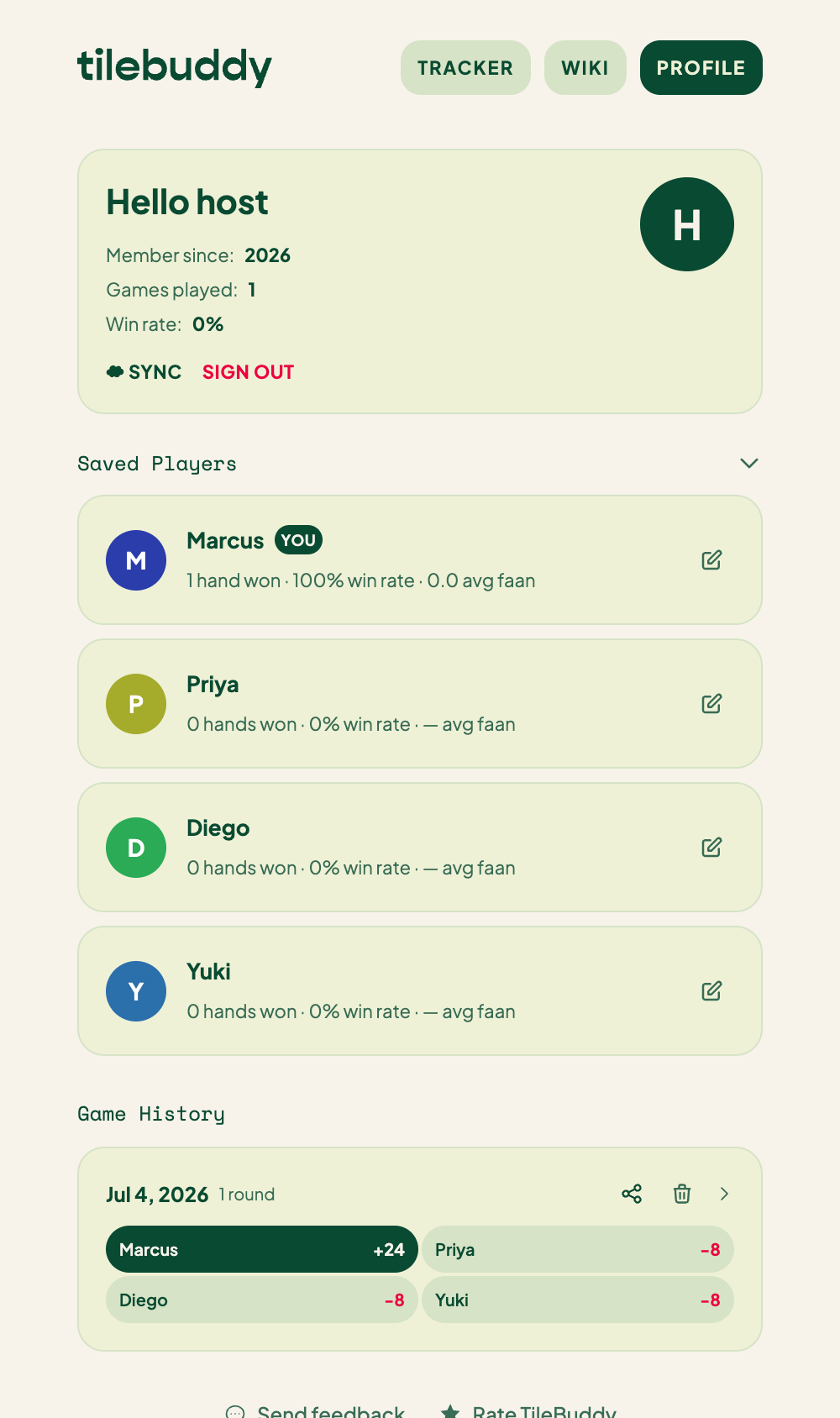
Open the Profile tab in the top nav to see everyone you've played with under Saved Players. Tap any row to expand it and see that player's stats:
| Stat | What it shows |
|---|---|
| Hands won | Total hands won across all games |
| Hand win rate | Wins ÷ total hands played |
| Avg faan | Average faan per winning hand |
| Biggest hand | Highest faan on a single hand |
| Avg score / game | Average net points per game |
Tap the row again to collapse it.
Your profile (YOU)
One profile can be marked as YOU. The first player to set up a game on this device gets the YOU marker automatically.
To reassign it to a different profile, tap the edit icon on that profile and choose Set as you. Only one profile can be YOU at a time.
Editing a profile
Tap the edit icon (✎) on any row to open an edit sheet. From there you can:
- Rename the profile.
- Set as you — marks this profile as your own.
- Remove — deletes the profile and its history from this device.
On-device only
Profiles live entirely on your device. They are not backed up to a TileBuddy account and are not synced anywhere. Clearing app data or reinstalling the app removes them.
Related
- Settings — where Profiles lives.
- Score Tracker — where you choose who's playing each game.