Creating an Event
An event is one game night. You create it from your club dashboard, give it a name and a date, and TileBuddy sets up the rest so players can join.
Set up the event
- Open your club dashboard.
- Create a new event.
- Give it a name and pick the date.
- Optionally set a Starts at time (this field is optional).
- Set the number of tables (1–50) for the night.
- Choose whether to ask for skill level at check-in (on by default).
- Apply a saved rule preset, or tap ✎ to edit one first.
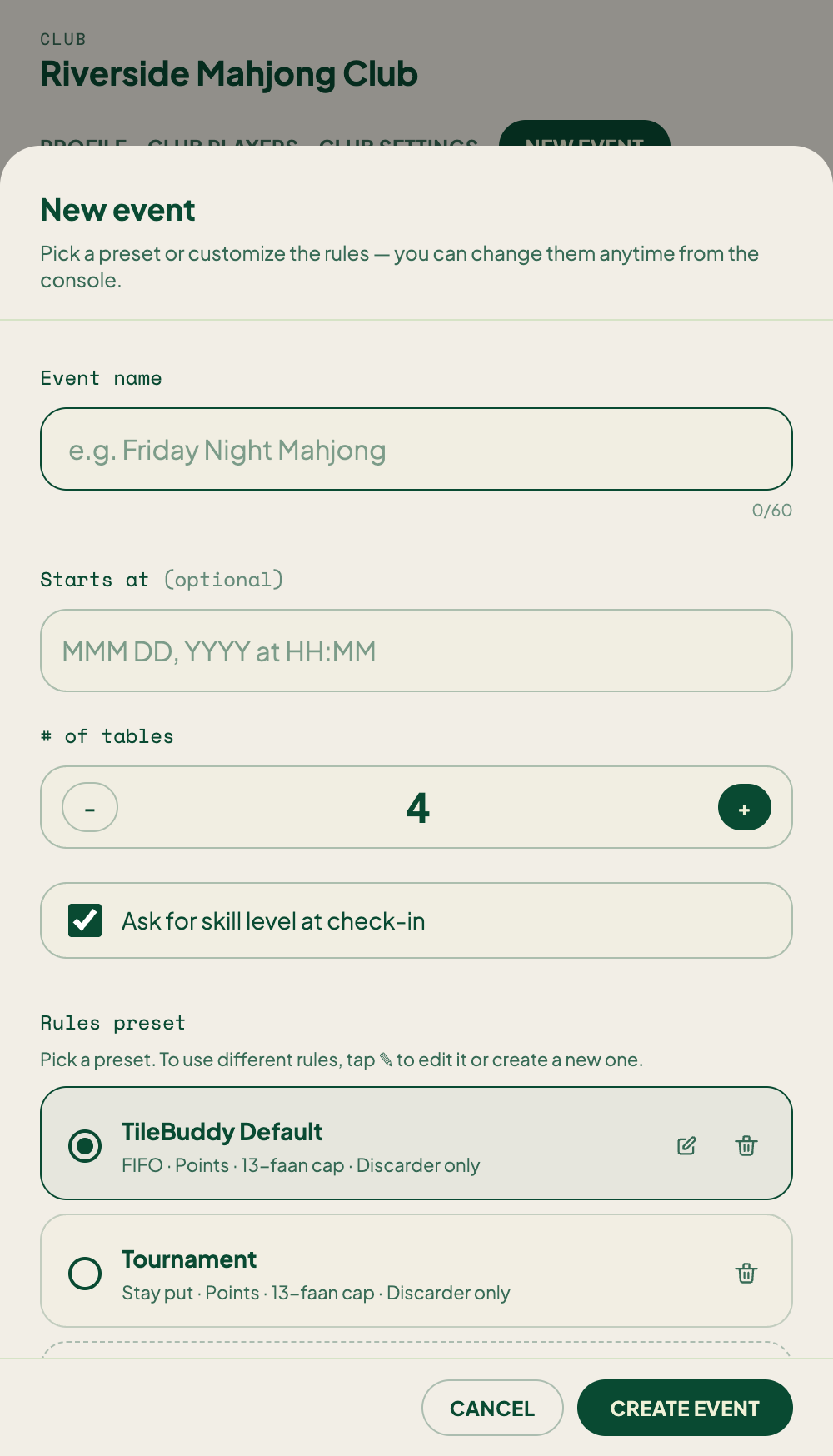
That's enough to get started. You can adjust everything later from the host console.
Auto-seat (whether new check-ins drop straight into an open seat) is a live toggle in the host console, not a creation choice. See Host Console.
Share codes
Every event comes with two ways in:
- A share code that players use to check in. Hand this out and they can join from their phones. See Checking in.
- A separate co-host link for helpers who run the night alongside you. See Co-hosts.
Keep the co-host link private. It gives more control than the player check-in code.
Tables
TileBuddy creates your tables based on the number you entered — each gets a fun mahjong-themed name and four seats. You can change the count later from the host console.
When you want to tailor the room, you can:
- Add or remove a table as the night's attendance shifts.
- Rename a table.
How many events you can run
- Free clubs can run one event, ever.
- Club Pro is unlimited.
See Club settings for how to upgrade.
Free clubs still get the full event experience for that one night, including check-in codes, seating, and rotation.
Next step
Once your event exists and players start checking in, head to the host console. That's the live screen you run the whole night from.